Showing posts with label AdSense features. Show all posts

Monday, 7 February 2011

Upcoming changes in backup ad options

We frequently review our product and feature offerings to ensure they’re as effective as possible. Based on these reviews and on feedback from our non-profit partners, we’ll gradually begin retiring public service ads (PSAs) from AdSense sites so that we can focus our efforts on developing new opportunities for these partners.

As a refresher, PSAs are unpaid ads that can appear on publisher sites when we aren’t able to serve a paid ad. This can occur for a number of reasons, such as when relevant ads aren’t available for a page, or when a publisher has exceeded the amount of time to verify their address by receiving a Personal Identification Number.

As always, we’re committed to supporting our non-profit partners, which is why we’re continuing to offer free AdWords advertising for these partners via Google Grants; the Google Grants program is just one part of our larger Google for non-profits initiative. Also, ads in the Google Grants program are unaffected by this change. They'll continue to appear on AdSense sites and you'll earn from valid clicks and impressions, just like with normal ads. To learn more about the latest in Google Grants, including recent tips, events, and clinics, visit the official Google Grants blog.

What does this mean for you as a publisher? If you’ve previously selected ‘Show public service ads’ in the ‘Backup ads’ section of the new AdSense interface (or the ‘Alternate ads or colors’ section in the old AdSense interface), you’ll begin to see that when we’re unable to serve paid ads to your pages, a blank space will appear instead of a PSA. On the other hand, if you’ve opted to show non-Google ads from another URL or to show a solid color, you won’t be affected by this change; your choices will continue to be applied in cases when we aren’t able to show paid ads.

You’ll also notice that the option to select PSAs as backup ads no longer appears in your account. We’re working to provide new backup ad options, and will keep you updated with any developments right here on Inside AdSense.

If you’d like to update the settings for your backup ads at any time, sign in to your account and follow the instructions for the interface you’re using:
  • New AdSense interface: Visit the My Ads page and select the ad unit you’d like to update. Then, change the settings for ‘Backup ads.’
  • Old AdSense interface: Visit the Manage Ads page under the My Account tab, and click ‘Edit Ad Settings’ for the unit you’d like to change.
If you'd like to discuss this change with other publishers or provide feedback to our team, join the conversation in our Forum. We’ll be updating our Help Center entries and troubleshooters to reflect this change as well. Thanks for your patience as we complete this transition.

Wednesday, 26 January 2011

New Interface Wednesdays: Graphs right in your account

This is the first post in our ‘New Interface Wednesdays’ series. Every Wednesday for the next few months we'll highlight something new you can do in the new AdSense interface. From time to time, we’ll also share stories directly from publishers who've been using the new interface and announce additional features we’ve recently added.

For our first ‘New Interface Wednesdays’ post, we’d like to highlight the graphical reporting under the Performance Reports tab in the new interface. The new graphs make it easy to see trends in your performance. Rather than scanning rows of numbers, you can view impressions, clicks, and earnings, all in one graph.

Select the metrics you want to see by checking the boxes next to the graph. You can also hover over the graph to get detailed metrics for a specific day, just like in Google Analytics. The graph will appear for just about any type of report you run, making it easy for you to visualize performance. Above the graph, you'll find buttons to save reports that you commonly use and set a report of your choosing to be the default report with a single click. Of course, you can still export the data to a CSV to further process the data in a spreadsheet as well.


If you aren’t yet familiar with the graphs in the new interface, check them out today. Navigate to the new interface and click on the Performance reports tab.

Thursday, 20 January 2011

Sensitive category blocking now available in three more languages

Since our announcement last August that sensitive category blocking had been expanded to more languages, we’re excited to say the language expansion has gone even further!

This week, publishers in Thai, Turkish, and Russian-speaking countries can now block ads in sensitive categories for all supported languages. The full list of supported languages spans English, French, German, Spanish, Italian, Dutch, Arabic, Japanese, Chinese, Polish, Portuguese, and now Thai, Turkish, and Russian.

With sensitive category blocking, you can prevent ads from up to 11 specific categories from appearing on your pages. Ads in these categories will be blocked if they're in any of the supported languages, regardless of how they've been targeted to your pages.

If you’d like to set up sensitive category blocking, sign in to your AdSense account. We recommend using the new AdSense interface, which you can access by clicking the “Try the new AdSense interface” link that appears in the upper corner of your account. Once you're in the new interface, visit the Allow and block ads tab and choose the Settings page to edit the list of sensitive ad categories you wish you display. To help you understand the impact of applying these filters, this page also shows you the percentage of revenue and ad impressions you've been receiving from each category in the last 30 days.

If you prefer to use the previous version of the AdSense interface, visit the Ad Review Center, located under the 'AdSense Setup' tab. Once you click 'change', you'll be able to see the full list of categories you can block.

For more information about sensitive category blocking, we encourage you to visit our Help Center.

Wednesday, 12 January 2011

New features now available in the new AdSense interface

Since our post announcing the open beta of the new AdSense interface, we’ve been working on a few additional features, listening closely to your feedback about how we can continue to improve. We’re very excited to announce a few changes that will further enhance your AdSense account management experience:
  1. We’ve changed the default metrics shown on the Home and Performance reports pages based on strong feedback that most of you prefer to view your earnings at the page level rather than by ad unit. As a result, we’ve switched back to page level metrics, and those of you who wish to see ad unit CTR and other ad unit level metrics can now do so under the Performance reports tab.
  2. The Allow and block ads drop-down selector, which lets you see your blocking features by product, has been updated to call out the product name. This makes the interface a lot more clear for those of you using multiple products.
  3. Ad unit impressions and queries have been renamed ‘Ad requests’ to better describe how this statistic is used for AdSense for content, AdSense for search, and other products. An ad request is recorded each time an ad unit on your site requests ads from Google's servers (for content ads) or a search query is made (for search ads). We report an ad request each time a request was sent, even if no ads were returned and public service ads, backup ads, or no ads were displayed instead.
  4. Based on feedback, we’ve updated the terms found under the Ad types section of your Performance reports to include text, image, rich media, animated image, and flash. Previously, rich media ads were referred to as HTML and animated image was called dynamic image.
  5. For publishers using our AdSense for games and AdSense for video products, you can now create and edit channels and see reporting for these products. Learn more about AdSense for games and AdSense for video.
Thanks again for all of your great feedback. We’ll let you know as we continue to roll out new features. In the meantime, keep the comments coming on the blog or in this Forum discussion!

Monday, 20 December 2010

The new AdSense interface: Greater efficiency

We’ve given you a tour and covered the greater insight and control that you get with the new AdSense interface, but we couldn’t end the series without a video about the improvements in account management. The new interface lets you find features and make changes to your account more efficiently than ever. You can also get help when and where you need it with relevant help links customized to the content of each page of the interface.


We hope you learned something with our video series and are continuing to enjoy the new AdSense interface!

Thursday, 16 December 2010

Google Apps welcomes AdSense

Google Apps is Google’s suite of cloud-based messaging and collaboration apps used by over 30 million users in small and large businesses, educational institutions, government agencies, and non-profit organizations around the world. Apps includes products such as Gmail, calendar, documents, spreadsheets and more, specifically optimized for use in organizations.

We recently launched an improvement to Google Apps that made dozens of Google services, including AdSense, available to Apps users for the first time. Before this improvement, Google Apps users had to create a separate account to sign in to AdSense; now, Apps users can access their cloud-based productivity applications along with AdSense using the same account.

For those of you who also have a Google Apps account, we're in the process of finalizing the infrastructure that will allow you to seamlessly transition your existing AdSense account and data over to your Google Apps account. For new users, if your Apps systems administrator has enabled AdSense, you can begin using this services with your existing Apps account at google.com/adsense.

If you haven’t started using Google Apps yet to manage collaboration for your business, learn more about how to lower IT costs and improve productivity at google.com/apps.

For more details, read the complete post on the Google Enterprise blog and follow all the updates on other newly available services for Google Apps users.

Tuesday, 14 December 2010

General Category Blocking extended

Following up on our announcement that we’ve been beta-testing a new category blocking feature, we’re delighted to release the feature to all publishers in English-speaking countries. General category blocking is an important update to the new AdSense interface that offers you more controls over the ads that appear on your website. It helps you scalably prevent competitors’ ads and ads that you might not find suitable for your audience from appearing on your site. With this new control, you can opt out of receiving ads from across 170 specific categories, including finance, travel, job, and automotive.

We show the percentage of total revenue and total impressions for each category to give you insight into the categories of ads that appear on your site and the relative spend in those categories. Keep in mind that blocking categories may have a negative impact on your potential revenue so it’s important to review the % of total revenue and total impressions carefully before deciding to block a certain category.


This feature is now available to all publishers in English-speaking countries in the new AdSense interface. General category blocking will initially apply only to ads in English, regardless of the language of the site. We are working on expanding it to other languages in the future.

We hope this feature will address the feedback we’ve heard from many publishers who want a way to quickly and easily control the ads appearing on their site.

Please leave us comments on how you find the feature.

Friday, 3 December 2010

AdSense for domains makes it easier to setup your domains

A common request we’ve received from publishers using AdSense for domains is to make it easier to park your currently unused/undeveloped domains with Google. We’ve listened to your feedback, and are now pleased to announce that we've simplified the process of setting up AdSense for domains.

As of today, to get your domain setup with AdSense for domains, you can simply delegate your domains’ nameserver to Google’s DNS nameserver. This is typically a single step with your registrar, and simpler than the old method of changing A records and creating CNAME records. You can still use the old method if you prefer, and domains that are already set up will continue to work.

To get started, review our instructions for delegating your nameserver to use Google’s DNS nameserver in our Help Center.

If you own any domains that you haven't yet had a chance to develop, now is a great time to sign up for AdSense for domains.

Monday, 29 November 2010

The new AdSense interface: More controls

Based on your feedback, we’ve worked hard to give you more control over the ads on your site by improving the ad blocking options and making them easier to use. You can now block ads by advertiser URL, block categories of ads from showing on your site, and search and review placement-targeted ads by ad type, keyword, URL, or ad network to easily find, approve, or block ads in the ad review center. The video below provides an overview of these features:


We’ll see you next week for our last video in this series on the new AdSense interface. Don’t forget the popcorn!

Monday, 22 November 2010

The new AdSense interface: More insights

Now that you’ve had some time to dive deeper into the new AdSense interface, we want to be sure that you’re taking advantage of the additional insights at your disposal to help you make smart business decisions. You can now customize graphs and run detailed performance reports to analyze the amount you've made from various ad formats, ad sizes, bid types, and more. Watch this video for additional information:


Stay tuned next week for another video!

Thursday, 18 November 2010

The new AdSense interface: Take the tour

To help you learn more about the new AdSense interface, we’ve created a series of videos that focus on different features and benefits now available to you. Over the next few weeks, we’ll post new videos to the blog to ensure you learn all about the greater insights, control, and efficiency now at your fingertips. Today, we invite you to take a tour of the new AdSense interface. Check out an overview of the improvements we've made and the new features we've added:


If you’d like to start watching the rest of the videos, visit our new AdSense interface YouTube playlist or the video series tab of google.com/ads/newadsense.

Monday, 15 November 2010

Spot a problem? Check the Known Issues page

We work hard to make sure that AdSense is always up and running smoothly. Even so, there can be slight issues, and when those happen, we try to resolve them as quickly as possible. To keep you informed about any issues our engineers are tackling, and provide you with workarounds so you can continue to effectively manage your account, we want to remind you about the Known Issues page.

We update this page regularly to keep you posted about our progress as we work toward a resolution. We also record recently resolved issues so you can check if something you've experienced in the past has been fixed.

In fact, we now have two Known Issues pages, one for the old interface and one for the new interface. This way, you'll know if an issue pertains to the interface you're using.

If you don't see your issue listed, join the discussion in the AdSense Forum to see if other publishers are experiencing the same thing. We monitor your feedback in the forum to help identify issues, so if multiple publishers are discussing a similar concern, we’ll be sure to escalate it to our engineers immediately and post any details and workarounds to the Known Issues page as soon as possible. You can also report an issue about the new interface to our product teams directly from the interface by clicking the 'Report Issue' link available on the top of every page.

Thanks for staying on top of your account! We’ll do our best to keep everything working as smoothly as possible.

Wednesday, 10 November 2010

Introducing the new AdSense interface, now available globally

Last November we announced that we were starting to test a new interface with a limited group of publishers. Since then, we’ve been focused on adding new features and incorporating feedback from our testers. Today, we’re excited to announce that we’re rolling out the new AdSense interface to all publishers globally. You should now see a “Try the new AdSense interface” link appear in the upper corner of your account. Clicking the link will bring you to the new interface.

Built based on feedback we’ve heard from you, our publishers, the new interface is full of features designed to help you make more money with AdSense. We want to thank you for all the input you’ve given us, and show you some of the ways it’s reflected in the new interface.


You’ve told us that data that helps you better understand your performance is critical to growing your revenue, so we’ve made sure that the new interface gives you more insights.
You can now run even more detailed performance reports by ad type, ad size, ad unit, targeting type, and bid type for total earnings and other metrics, over custom date ranges. You’ll also find graphs of your data on the new Performance reports tab. You can quickly view impressions, clicks, and earnings all in one graph, compare text ad performance to image ad performance, compare date ranges, and easily analyze data to recognize trends.

You’ve continued to let us know that protecting your brand by having control over the ads that run on your site is extremely important, so we’ve improved our ad controls and made them easier to use.
All ad controls are now in one place, on the Allow and block ads tab. Here, you’ll be able to filter ads from specific advertisers, categories, and ad networks. In addition, you’ll notice that we’ve updated the ad review center to make it easier to review and manage ads that have been placement-targeted to your sites. You can now search for ads in the ad review center by ad type, keyword, URL, or ad network, and choose to allow or block them.

You’ve shared with us the need to manage your account more efficiently, so we’ve redesigned the interface to help you complete tasks quickly and easily.

The new interface allows you to quickly see your earnings and payment information, find relevant features, and make changes to your account. It also brings relevant help and other resources, like videos and blog posts, right into the interface, so you can get the information you need without leaving your account.

We encourage you to give the new interface a try. To learn more, check out google.com/ads/newadsense. You’ll find additional videos, including a tour of the new interface, information about new features, and a getting started guide. You can also join the conversation in our Forum to share best practices and discover what other publishers think about the new interface.

Thanks again for all your feedback. We hope you like the new interface!

UPDATED Nov. 11, 2010: All AdSense publishers now have access to the new interface, as our Engineering team was able to speed up the roll out across all accounts.

Wednesday, 27 October 2010

Make the most of your AdSense experience with our new checklist

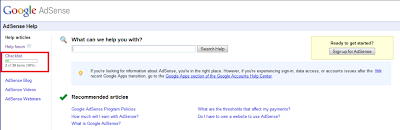
Starting a new program can be overwhelming. What steps should you take to get off on the right foot and make the most of your account? To help you make your way with AdSense, we're delighted to introduce the AdSense Checklist to publishers viewing our U.S. Help Center.


If your language preference is set to U.S. English and you are logged in your Google Account, you'll find the checklist in the left navigation bar of the Help Center. You can recognize it by the progress bar. The checklist is divided into five parts, offering basic recommendations, required steps, and tips to help you grow your account to its full potential.


When you check an item, you'll see the progress bar update accordingly. This will help you in several ways. If you're new to AdSense, you'll get a clear overview of what steps to follow to make the most of your account. If you’re already an experienced AdSense publisher, you'll also have the chance to revisit the basics, and further develop your use of the program.

The progress bar can help you identify quickly how many of the recommended steps you’ve completed, and the checklist will suggest which step you can take next.

We hope that this Help Center feature will be useful to you and help you grow with the AdSense program! If you have other great ideas for ways to help newbies get started with AdSense or thoughts on how to make the checklist even better, join the conversation in our forum.

Wednesday, 6 October 2010

‘Tis the season for placement targeting

With the holiday season fast approaching, everyone is spending more online. As consumers start shopping for gifts, searching for holiday activities, and booking vacations, advertisers are putting more of their marketing dollars online to reach these potential customers. This means there is an increased demand for the ad space on your site and an opportunity for you to earn more. To help you capitalize on this trend, we recommend you take advantage of placement targeting.

Many advertisers create targeted brand campaigns at this time of year that are shown on AdSense sites in the Google Display Network. In fact, 99% of Google’s 1000 largest advertisers run campaigns on the Display Network. To ensure their brand is noticed by the right shoppers, advertisers will often use placement targeting to show their ads on websites in the Display Network that cater to their target audiences.

You can take advantage of this holiday increase in advertiser spend, and help advertisers placement target specific sections of your site using a feature called ad placements. By creating an ad placement, you’ll make sections of your site available to be targeted directly by AdWords advertisers.

Imagine a sport shoe manufacturer. To ensure his shoes get to the right consumers for the holidays, he may want to select sites within the Display Network that appeal to 25- to 34-year-old athletic males looking to purchase athletic shoes. As a publisher with a sports site, you can create ad placements for specific segments of your site so that the sport shoe manufacturer can find you based on these criteria. You can provide descriptions of your site, general demographic segment / audience information, and where the ads appear on your site. Placement targeting connects you directly to the advertisers who want to reach your readers, and are ready to spend their holiday budgets to do just that.

In the coming weeks, we’ll post more tips on how to make the most of placement targeting. In the meantime, check out the Help Center and this video to learn more about placement targeting and how you can get started. The sooner you do so, the sooner advertisers can see your ad placements and potentially include you in their holiday campaigns!

Monday, 4 October 2010

Announcing beta test of expanded category blocking

Last year we launched sensitive category blocking in order to give you more control over the ads that appear on your sites by letting you opt out of receiving ads that fall into potentially sensitive specific categories such as dating, religion, and politics.

Today we’re excited to announce that we’re beginning to test a related new feature called general category blocking with a small group of publishers. General category blocking will allow you to block even more categories of ads from appearing on your site. We’re testing this feature with 170 more specific categories, including finance, travel, job, and automotive. This feature will allow publishers to block up to 50 ad categories from among a broad range of 170 fine grained categories. To help you understand potential changes to your earnings, we’ll provide you with the percentage of your total revenue and total impressions that fall under each category.

General category blocking will initially apply only to ads in English, regardless of the language of the site. We are working on expanding it to other languages in the future.

This feature is available in the new AdSense interface, which is currently in beta and being tested by a limited number of publishers.


Although we're not able to expand this test to additional publishers at this time, we wanted to give you a glimpse into one of the ways we're working to give you even more control over the ads that appear on your site. Over the coming months we’ll be working hard to refine this feature so that we can roll it out more broadly in the future. Please stay tuned to the blog for any updates, and feel free to leave us a comment in the meantime.

Tuesday, 28 September 2010

Learn AdSense optimization techniques with our new video series

Did you know that a simple change like enabling both text and image ads can boost your eCPM and revenue? Or that a 300x250 medium rectangle typically performs much better in terms of revenue than a 250x250 square? Or that widening an AdSense search box can double the number of queries performed on your site, leading to higher earnings? If you didn’t, don’t sweat it -- the AdSense team and I have come up with a list of six top optimization tips and best practices that can help you earn more quickly.

Many of our publishers’ sites and accounts aren’t fully optimized for AdSense, which means that they’re not earning as much as they potentially could. In these AdSense optimization videos, we walk you through some of the top optimization techniques and explain why they’re helpful in boosting your eCPM and revenue. Incorporating these techniques into your website and AdSense ad layout can help you monetize your traffic like never before!

In the six-part video series, we talk about how to:
  1. Upgrade to high-performing units
  2. Monetize more content
  3. Optimize search box placement
  4. Opt-in to text and image ads
  5. Use link units
  6. Opt-in to placement targeting
Even if you consider yourself an AdSense expert, you’ll probably learn a few new and exciting tips from this series. Take a look at the 'Upgrade to high-performing units' video below, check out all six videos on the official AdSense YouTube channel, and visit our optimization essentials center for more information.


Monday, 20 September 2010

Introducing themed ads in Custom Search

Last year, we took a big step forward in improving customization of the look and feel of results by providing plug-n-play themes in the Custom Search Element. This enabled you to choose from among a palette of predefined styles. You can find a style that matches your website and start using search, or further customize the style if you like.

We’re taking themes one step further. Each theme now has ads displayed with a look and feel that match the overall style used for the search results.

The result is harmony between search results and ads, which we think makes for a great user experience. The following screenshots show search results and ads for three different themes: espresso, minimalist and green sky.


We hope you agree that your visitors will enjoy themed ads. As always, be sure to send us your feedback.

Monday, 30 August 2010

AdSense email preferences: Get the most from your account and from Google

Have you checked your AdSense email preferences lately? If not, you may be missing out on important information and special offers without realizing. Take a minute to log in and update your email preferences under the ‘My Account’ tab.

Want to be invited to upcoming events like AdSense In Your City? Make sure you check the box next to Special Offers when you edit your email preferences so you can stay up-to-date with giveaways and other special programs in your area.

Want tips from the AdSense team for how to earn more with your AdSense account? Check Customized help and performance suggestions and/or Newsletters so we can offer personalized guidance to improve performance and maximize your revenue.

Want to help us improve AdSense by testing out features like the new AdSense interface? Check Google Market Research and you’ll be able to share your valuable feedback with us through surveys and beta tests.

Want promotions and key updates for other Google products that can help you grow your AdSense business? Check Information about other Google products and services which may be of interest to you so we can send you news and coupons based on your potential needs.

We want to help you earn more with tips and promotions, invite you to in-person events, and gather your feedback so we can continue to improve AdSense. So log in, update your preferences, and take advantage of the opportunities coming your way from the AdSense team!

Monday, 23 August 2010

Sensitive category blocking now available for Japanese, Chinese, Polish, and Portuguese

In an effort to expand the availability of sensitive category blocking (also known as category filtering) worldwide, we’re happy to announce that sensitive category blocking has now officially launched in Japanese, Chinese, Polish, and Portuguese. As you might know, this feature is also available in English, French, German, Spanish, Italian, Dutch, and Arabic with testing being done for Russian.

With sensitive category blocking, you can prevent ads from up to 11 specific categories from appearing on your pages. Ads in these categories will be blocked if they're in any of the supported languages, regardless of how they've been targeted to your pages.

If you’d like to set up sensitive category blocking, please sign in to your AdSense account and visit the Ad Review Center, located under the 'AdSense Setup' tab. Once you click 'change,' you'll be able to view the full list of categories you can block. In addition, to help you understand the impact of applying these filters, we'll show you the percentage of revenue and ad impressions you've been receiving from each category in the last 30 days.

For more information about sensitive category blocking, we encourage you to visit our Help Center.